https://www.home-assistant.io/
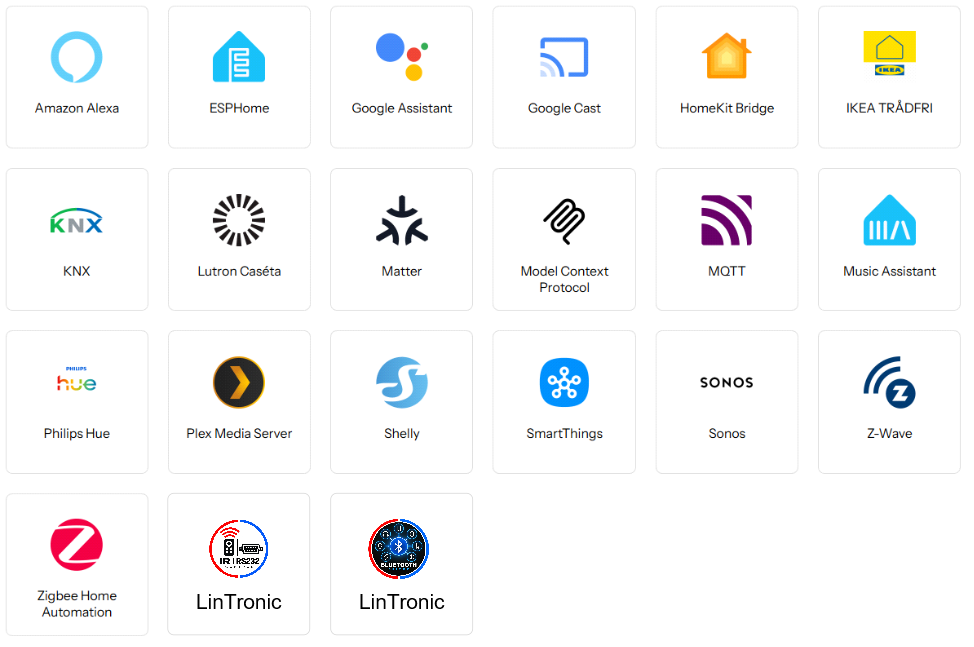
I stopped the production and sale of my hardware products due to the global pandemic and component shortages in 2012, but another big reason was that LinTronic could not perform the automations that an increasing number of customers wanted, like for example control of Google, Ikea, Philips Hue, Zigbee, Z-wave, etc.
Honestly, I did not have the skills to develop and maintain such a wide range of integrations and I did not have finances to pay somebody to do it.
Time moved on and today Home Assistant exist, and as we still focuse on providing the best possible support for our existing customers, despite we make no income on this, ofcourse we need to work with and support Home Assistant.
If you are a LinTronic TT455-RT-238 Signal Converter owner, you will be thrilled to know that you can now use your device with Home Assistant.
I am happy to share that with the help of AI like Copilot, it is relatively easy to install Home Assistant and set up your devices to work with Home Assistant.
Furthermore, we are working to read for example bluetooth devices like chestbelts and remote controls to cooperate with LinTronic Configurator and/or Home Assistant.
This document HomeAssistant.pdf explains how you can integrate your LinTronic Configurator or Signal Converter with Home Assistant.
I am very excited to add more features, so please do not hesitate to contact me, if you have ideas or find things not working.
Also you might want to join the public Facebook Discussion Group.
I had problems with Home Assistant crashing and losing network connection, so with the help of Google AI, I developed this dedicated LinTronic NetworkMonitor program for Home Assistant, which informs you of running programs, processes and CPU/RAM load when Home Assistant is running in VirtualBox. Unzip and read the README.txt. The log is shown on the screen while running and also saved in: "c:\LinTronic\NetworkMonitor\"
The program discovered that CPU and RAM settings in VirtualBox, and Windows Defender scanning the computer, were the reasons and how easy the problem could be solved. An ini file and a README allows you to adjust your settings.
Most important learning: Set VirtualBox to use 2 GB not 4 GB RAM, and optionally set VirtualBox to run on 1 CPU - not 2. Also, needed for laptops, to turn off the features that removes power to the network card. The NetworkMonitor program will check your computer for these settings.
See HomeAssistant.pdf for further explanations.
I would be absolutely thrilled if you would help with the continued development by placing a small donation.